Backgrounds and cutouts
Make an Amazon main image on pure white (RGB 255)
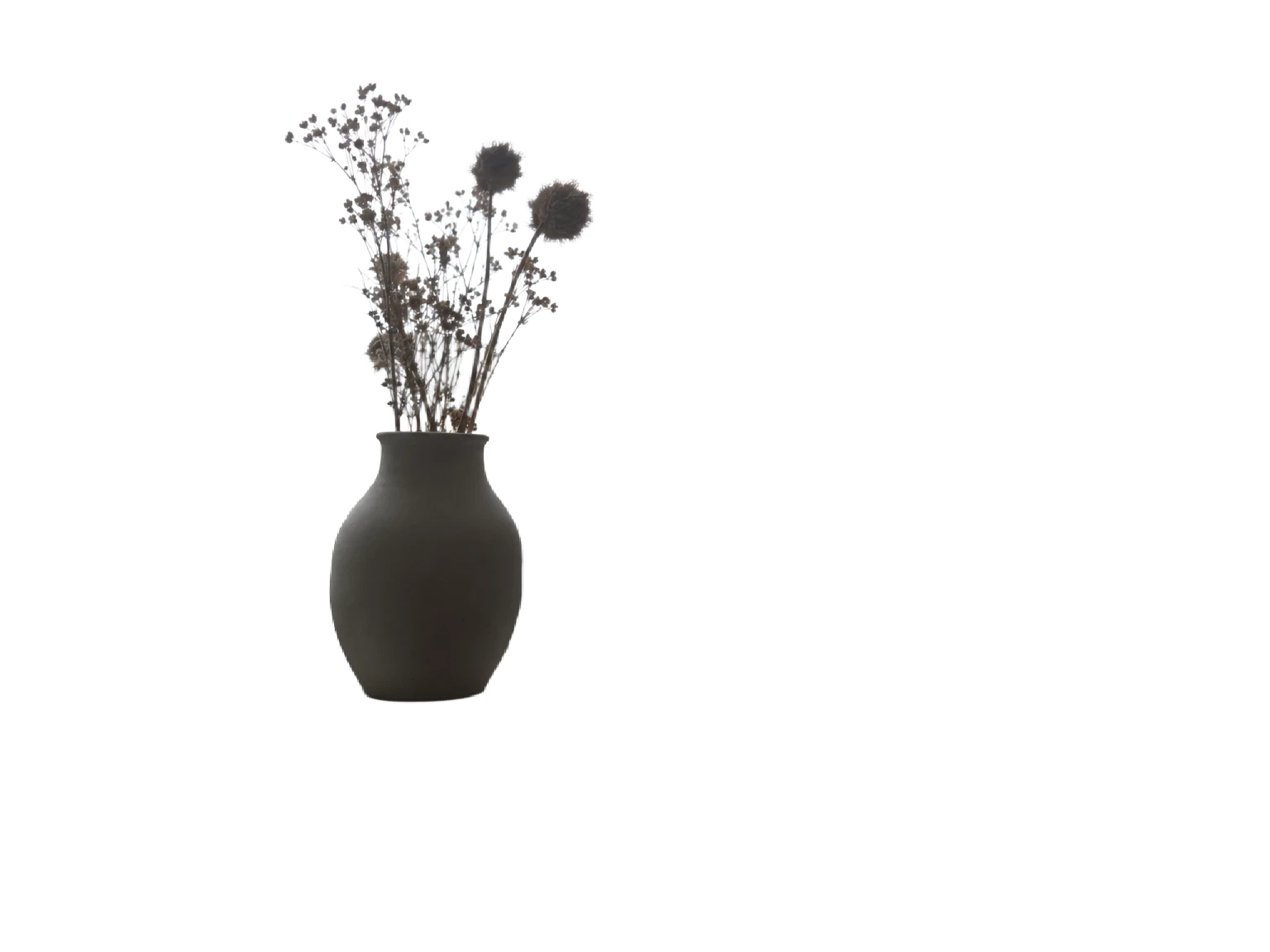
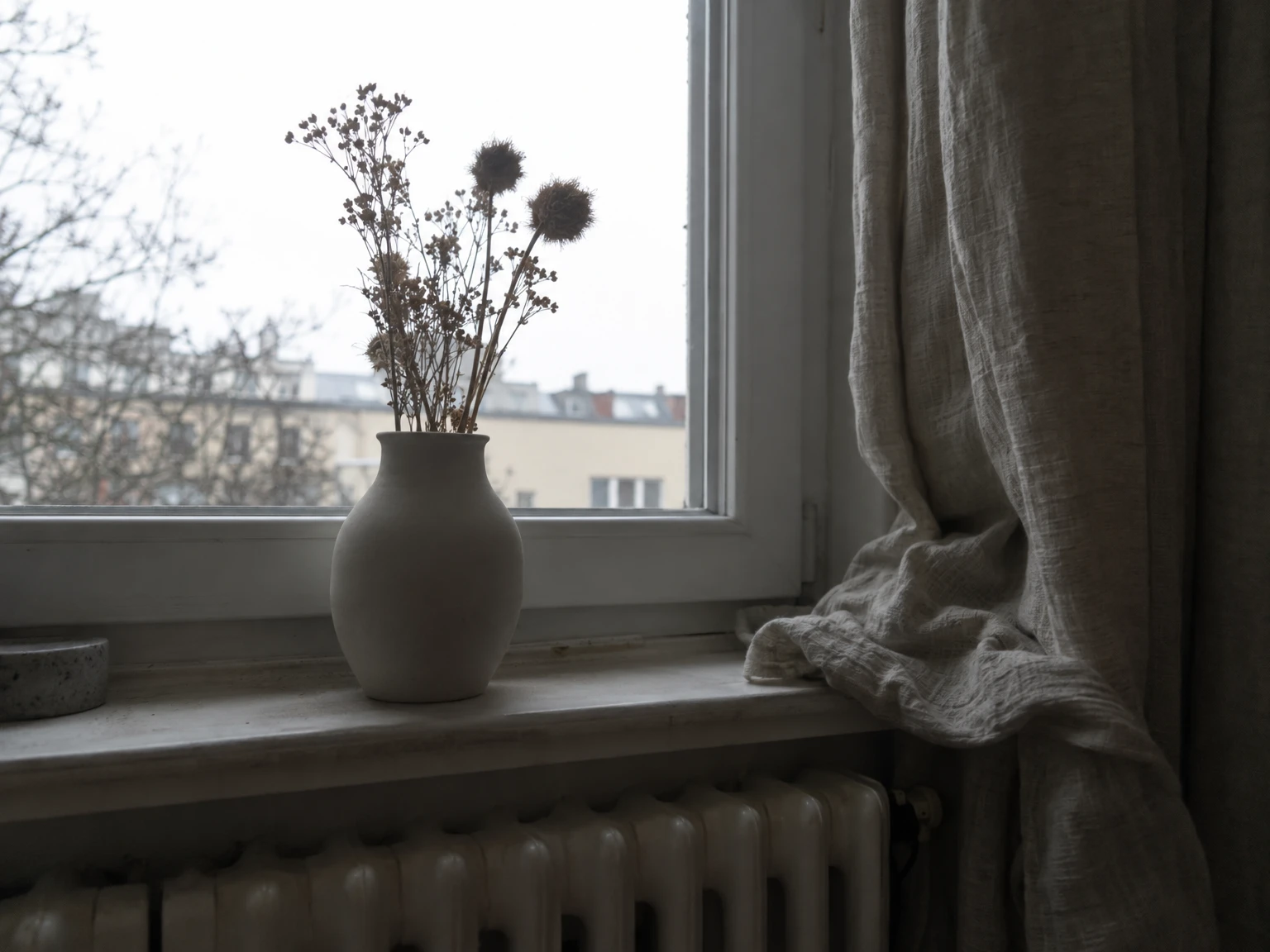
Open your photo in SayRetouch, choose White background, and click Cut out the subject. The product is cut out, not redrawn, and placed on pure white: RGB 255, 255, 255. Download a JPG or a PNG.
or drop or paste an image. JPG, PNG, or WebP up to 20 MB.
By uploading, you agree to our Terms of Service and confirm you have the rights to the image. Uploads stay private to your account.
What are the Amazon main image requirements?
Amazon's product image guide says a main image must "have a pure white background (RGB color values: 255, 255, 255)" and "show the product as 85% of the image", with the entire product inside the frame. It accepts JPEG, TIFF, PNG, and non-animated GIF files, recommends JPEG, and requires at least 500 pixels on the longest side; 1,000 pixels or more enables zoom. Off-white or gray backdrops, outlines left around the product, borders, and shadows that run to the edge of the frame all count as a non-white background, and a listing with no compliant main image can be removed from search. SayRetouch is the easiest way to get the white right: it cuts the product out without redrawing it and fills every background pixel with RGB 255, 255, 255. The framing and the size stay as you shot them. Source: Amazon Seller Central, read November 16, 2026.
Before you start
- A free account. A main image is free and uses one cutout from your quota. Free accounts get 3 cutouts a day, Starter 150 a month, Pro 250 to 1,200 a month and Ultra 1,500 to 3,400 a month, by size. When it runs out, you can wait for it to reset or pay 1 credit for one more. See pricing.
- A JPG, PNG, or WebP photo up to 20 MB and 50 megapixels. A clear, well lit product that fills most of the frame works best.
Steps
Open your photo
Upload it in the white background maker or in the editor.
Choose White background
It is in the tool bar on the left of the editor, or among the quick actions on a phone.
Click Cut out the subject
The product is cut out, exactly as you photographed it, and shown on white. This uses one cutout from your quota.
Click Download JPG
Or Download PNG. The file is the same size as your photo, and every background pixel is RGB 255, 255, 255 (#FFFFFF).
Check the white
Open the file in an image editor and pick a background pixel with the color picker: it reads 255, 255, 255. JPG compression can change a few pixels right at the edge of the product; a PNG is saved without loss.
Examples
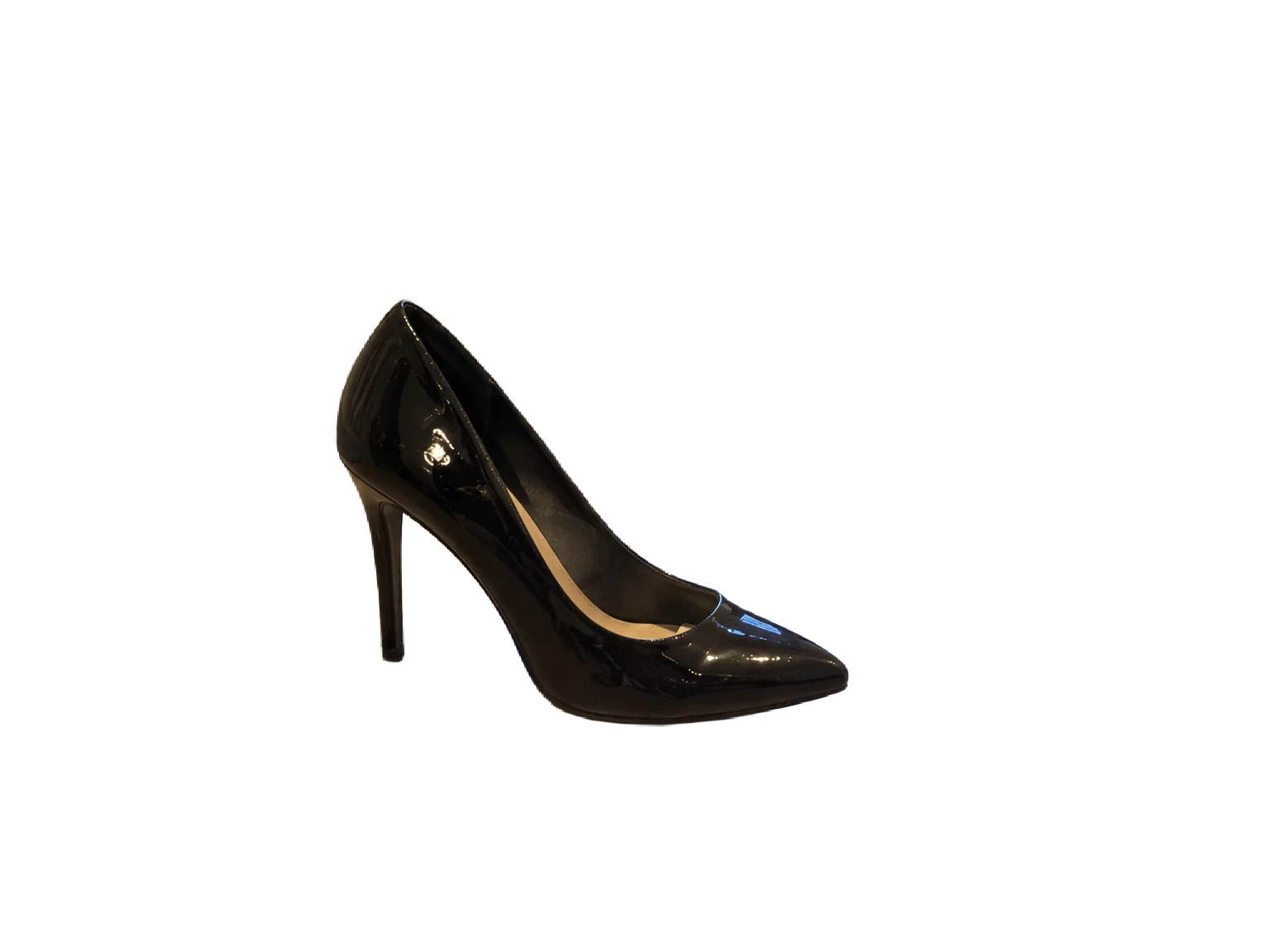
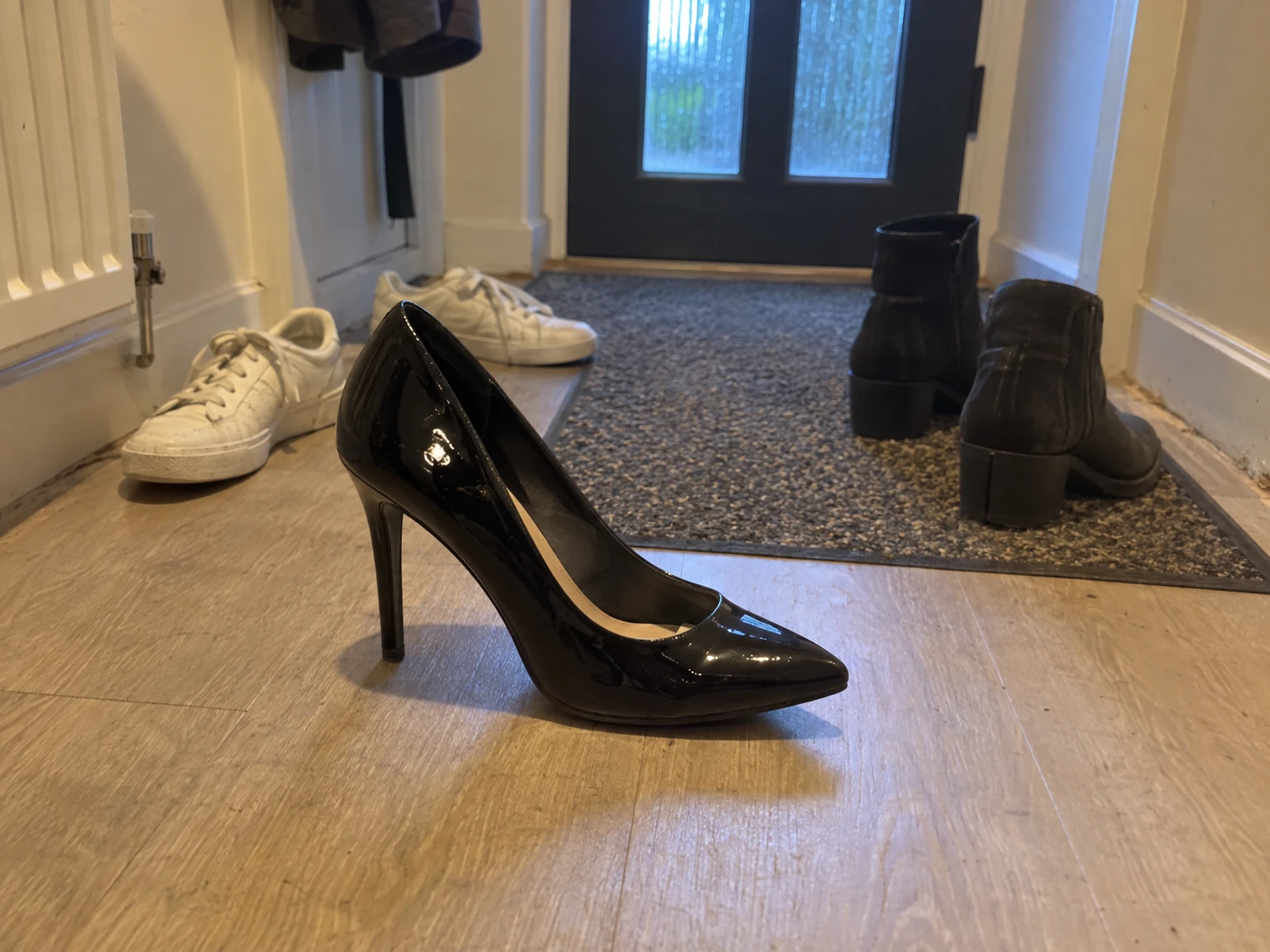
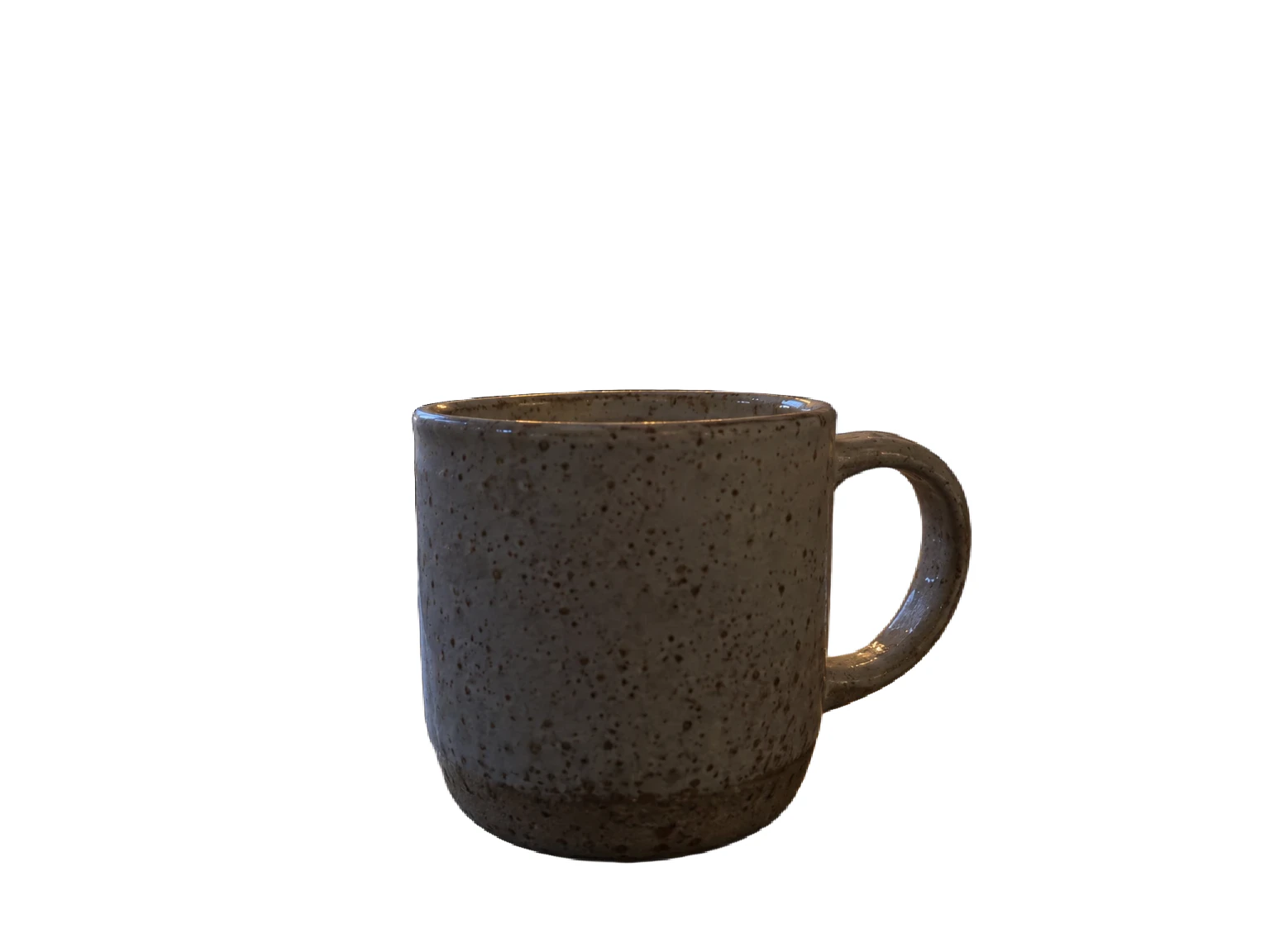
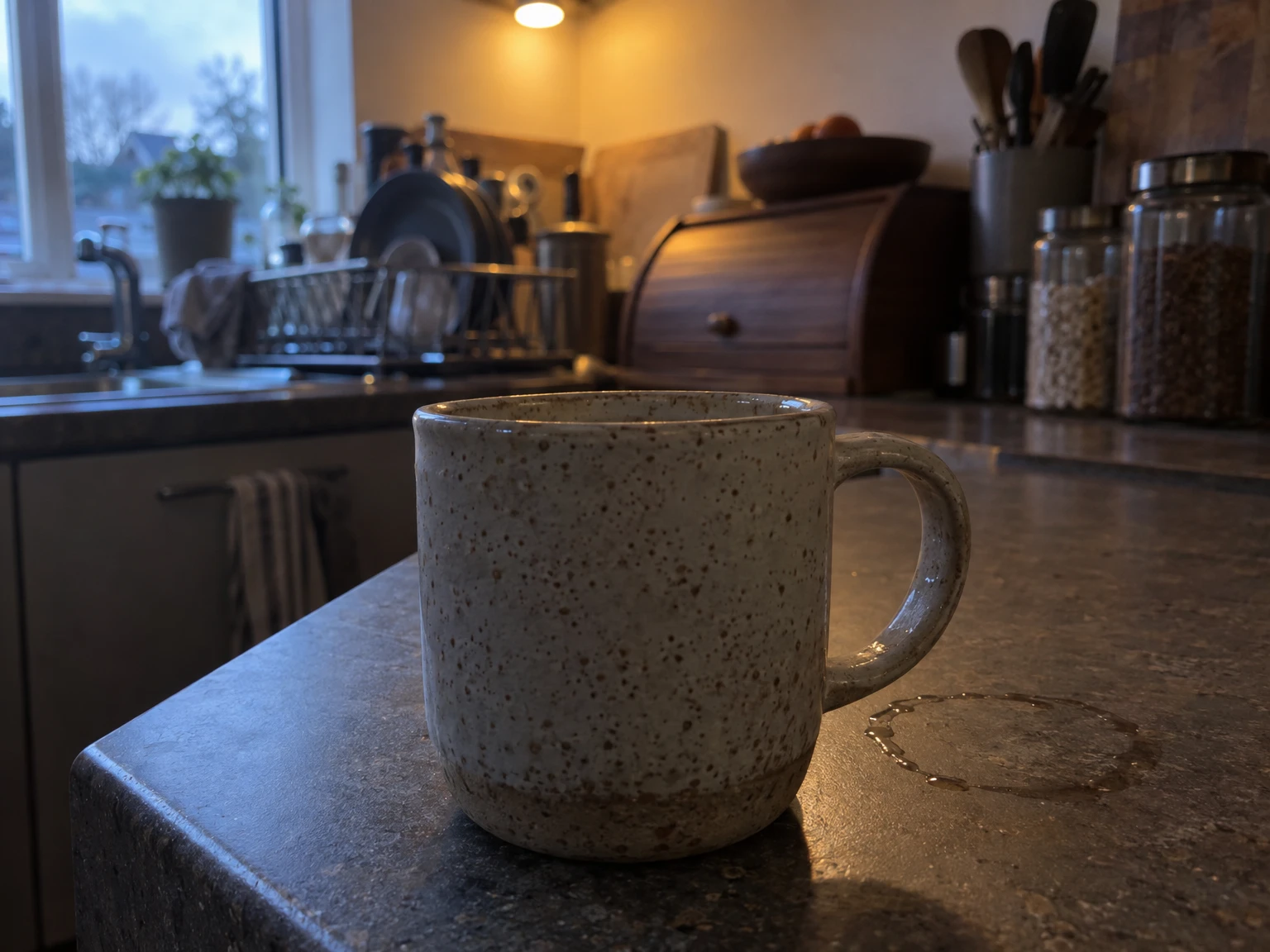
What it does not do
- It does not resize or center the product. Amazon asks for the product to take up 85% of the image; the download keeps the framing and size of your photo, so shoot with the product filling most of the frame, or crop closer before you start.
- It does not check your listing against Amazon. Amazon also has rules for the framing, the size, and what may appear in a main image, and they change: check the current product image requirements in Seller Central before you upload.
- Glass, clear plastic, and very fine detail are the hardest things to cut out. Look at the edges before you upload.
- The cutout is made with AI, so the file carries a machine-readable AI label. It does not show on the image.