Remove Person from Photo
Click or brush over the person who should go, or simply describe them, and the space is filled to match the rest of the photo. It is the easiest way to remove a person from a photo, and it works on any object too.
Upload a photo to remove people or objects
or drop or paste an image. JPG, PNG, or WebP up to 20 MB.
from 1 credit per image, confirmed before it runs See plans
By uploading, you agree to our Terms of Service and confirm you have the rights to the image. Uploads stay private to your account.
- Failed steps are not charged
- No public links or galleries
- We never train AI on your photos
- No watermark


How to remove person from photo
Upload your photo
JPG, PNG, or WebP up to 20 MB.
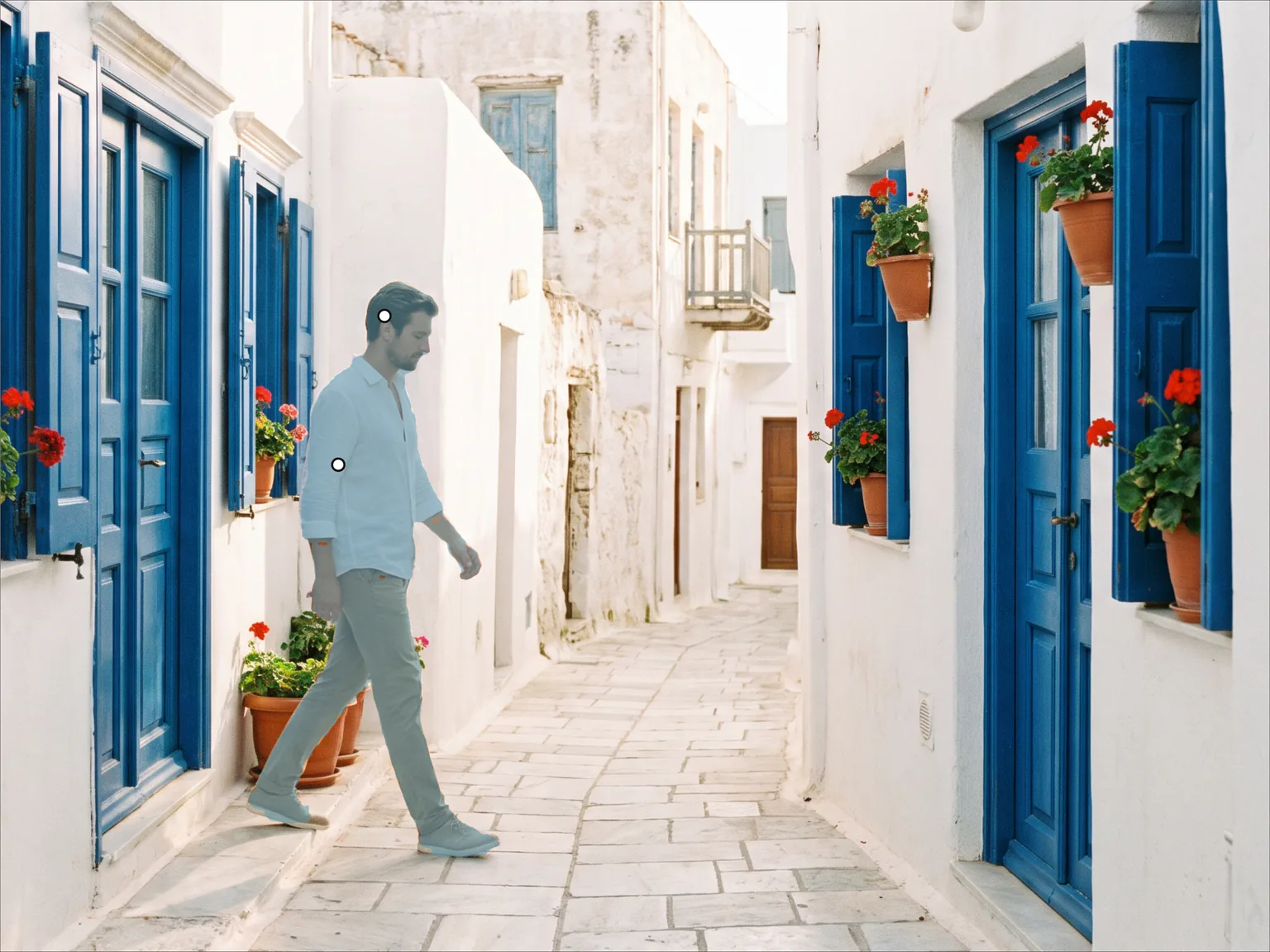
Select or describe the person
Click them, brush over them, or type who should go, like: the man on the left.
Confirm and download
Confirm the price — from 1 credit — and download the clean photo.
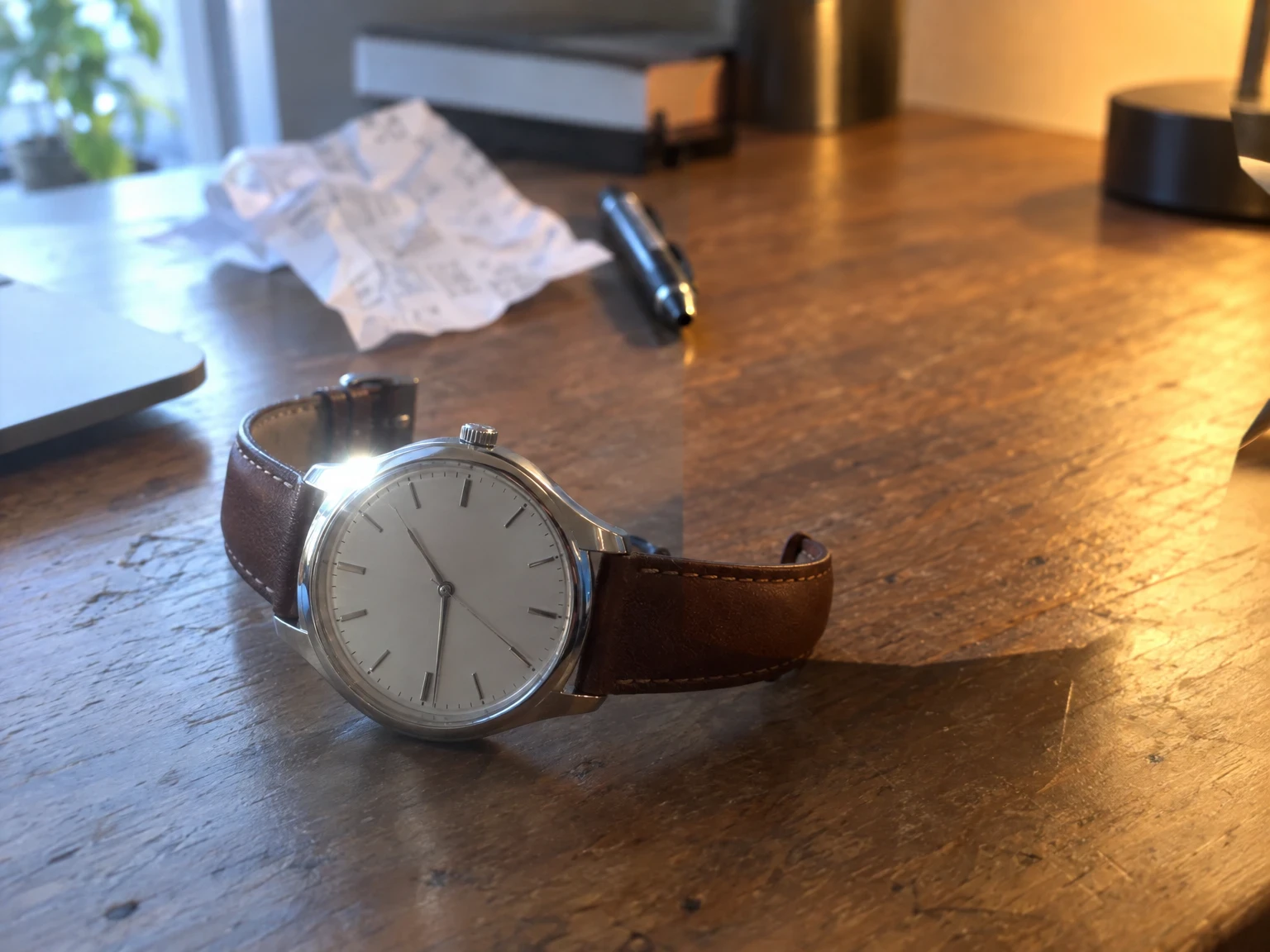
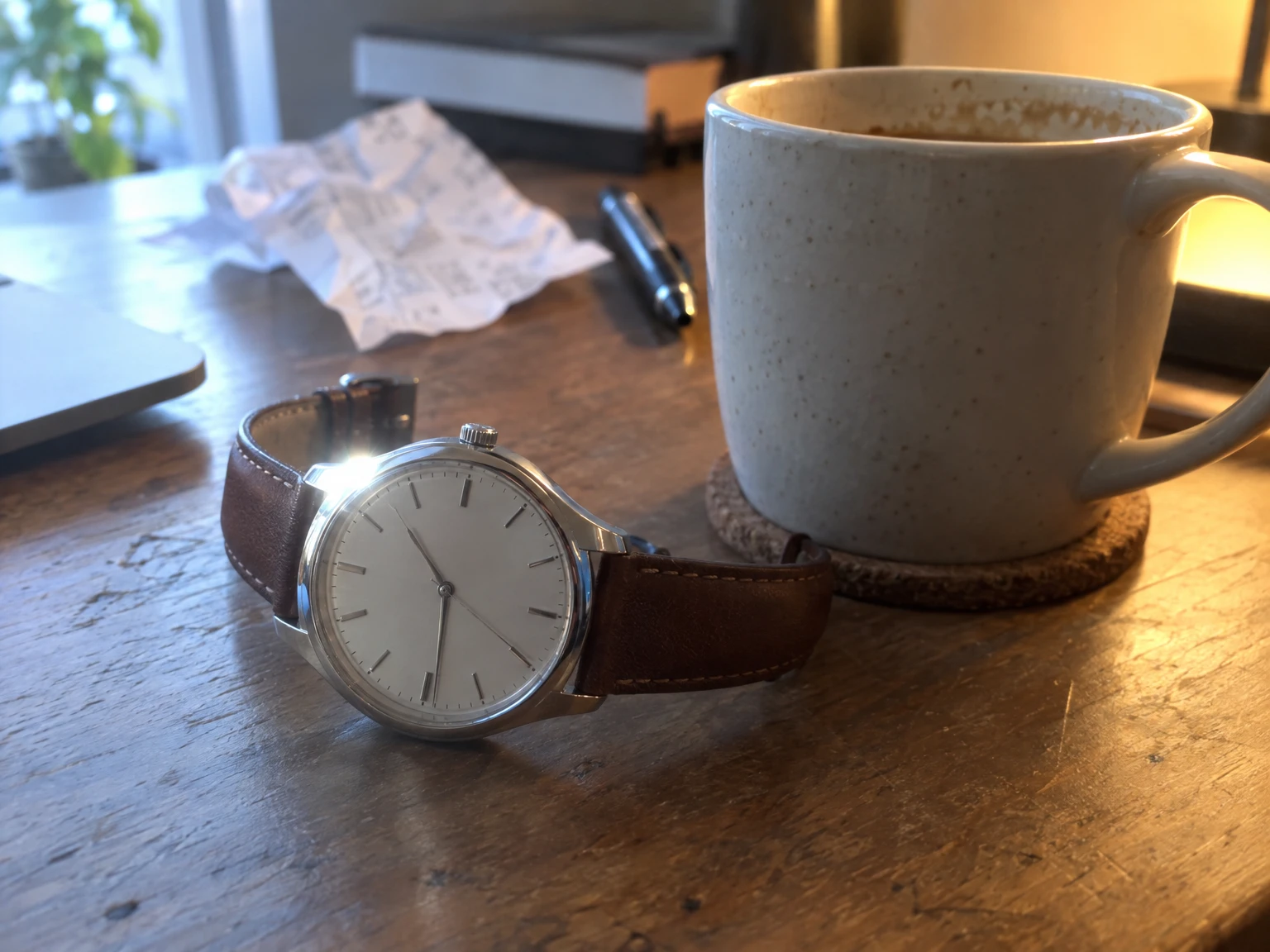
Remove person from photo: before and after
How does AI remove a person from a photo?
To remove a person from a photo, an AI object remover does two jobs: it finds the pixels that belong to the person, then draws what was probably behind them. In SayRetouch you choose the person with a click or two (Smart select), with a brush, or by describing them, such as "the man on the left". An AI image model then fills the space from what is around it. With a selection, only the selection and what goes with the person, such as the edge of their shadow, is replaced. The rest of the photo keeps its own pixels and the photo keeps its size, so nothing else gets softer. It is the best way to take one thing out of a photo and leave everything else exactly as it was. It works the same on any object, from a stray mug to a power line. Each erase costs from 1 credit, shown before it runs, and a failed erase costs nothing. New accounts get 2 trial credits, and every download is full size with no watermark.
The easiest way to remove person from photo: click, brush, or describe them
Click to select
Smart select finds the person or object you click, the easiest selection there is. Shift-click to add more to the selection.
Brush over it
Paint exactly the area you want removed, at any brush size.
Or just describe it
Type what should disappear and see the price before it runs.
The rest keeps its own pixels
With a selection, the erase is kept to what you picked and what goes with it. Nothing else is touched, and we think that makes it the best object remover.
Clean up before you list
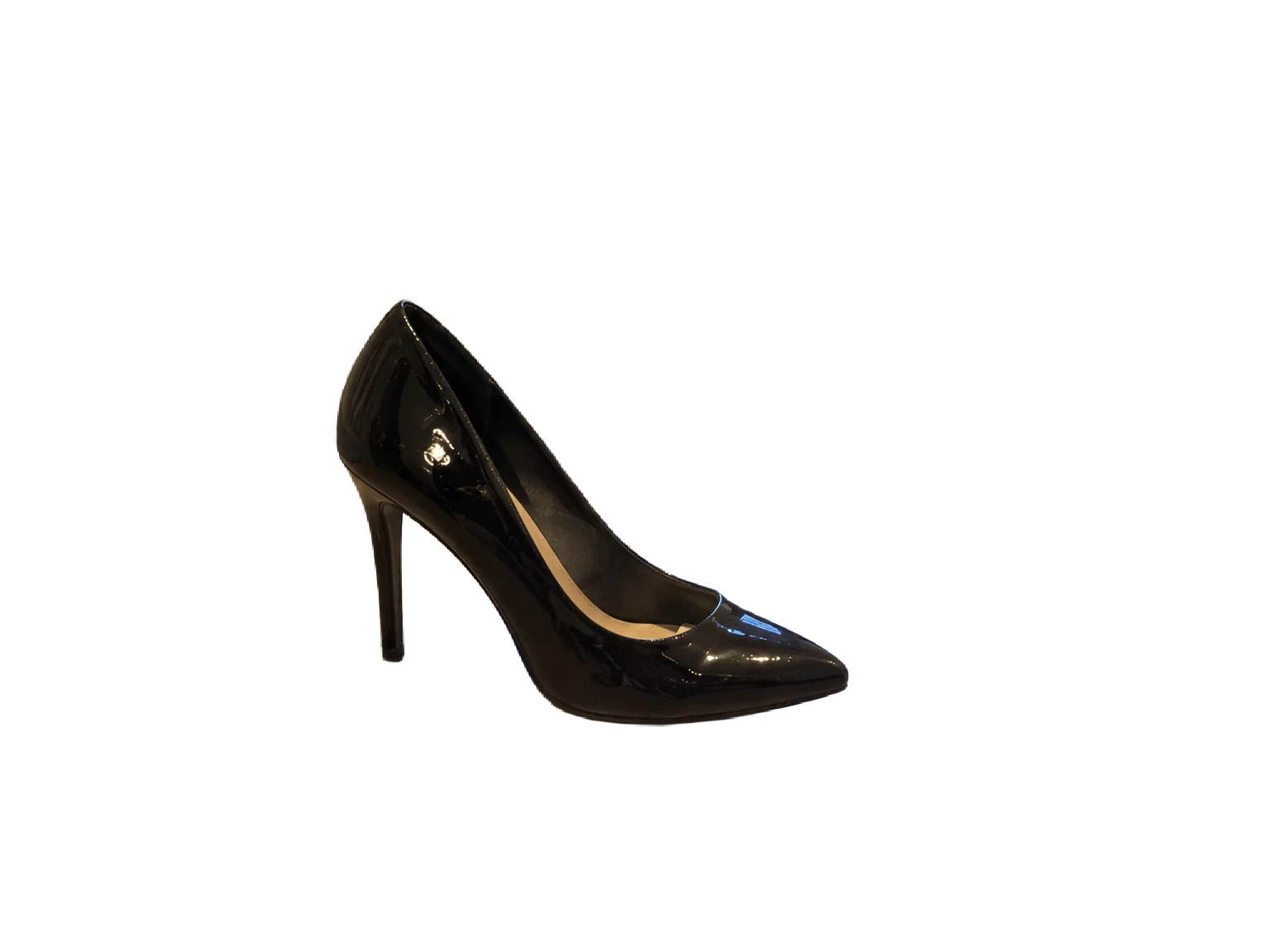
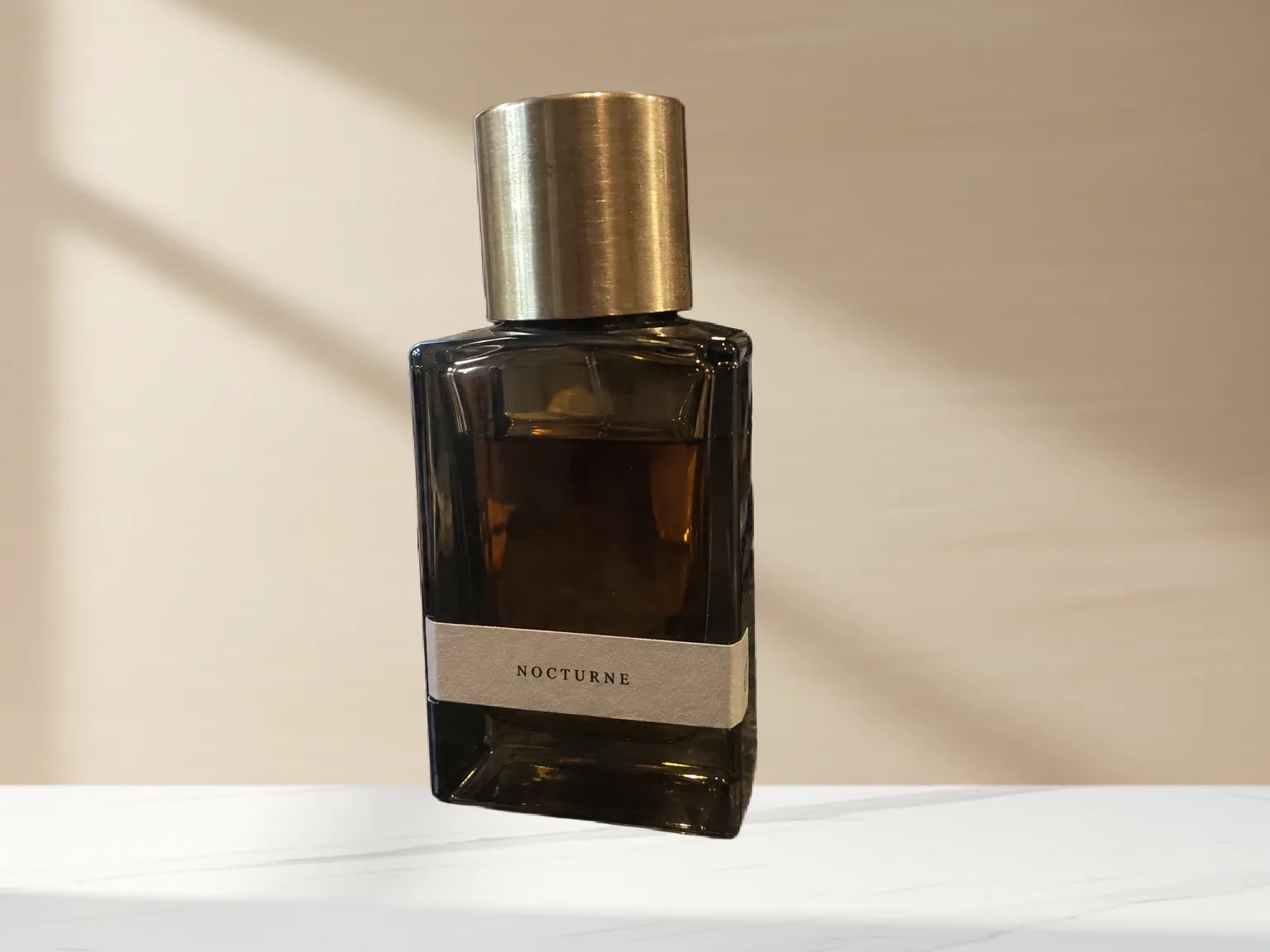
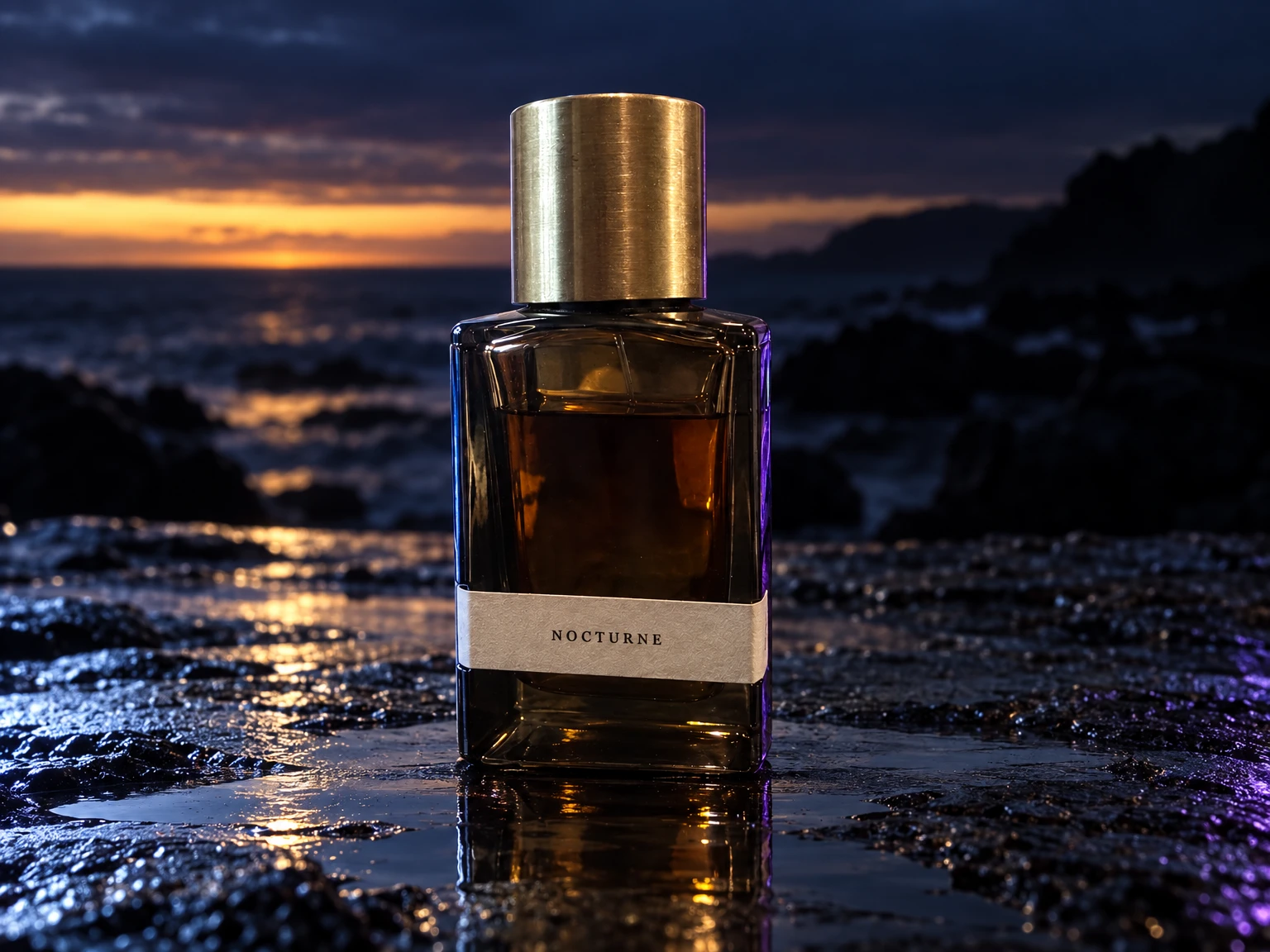
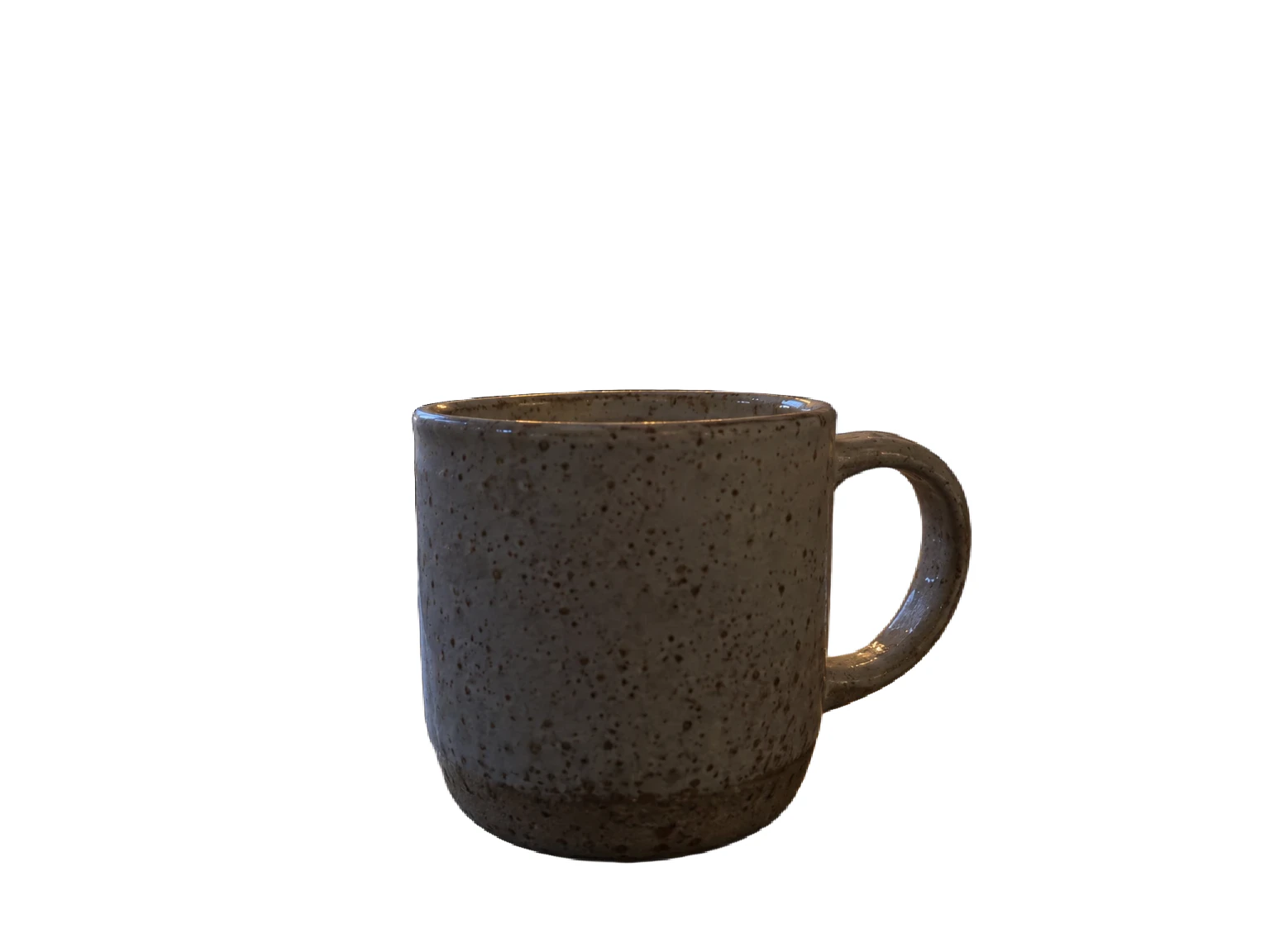
Remove packaging, cables, and stray items so the product is the only thing that stands out, like a studio shot.
Fix it again if needed
Every erase is a separate step in your history. Undo it, adjust the selection, and run it again.
A studio-clean photo, next step
Questions
Remove person from photo FAQ
Tools that go well with this one
Help center
Step by step
Try it on your own photo
From 1 credit per image, confirmed first. Smart select itself is free within your quota.